Showing posts with label netbeans. Show all posts

Tuesday, July 21, 2009

The new Netbeans look on OS X - Part II

Earlier, I had mentioned about the impressive UI improvements for OSX in the latest release of Netbeans( "The new Netbeans look on OS X" )
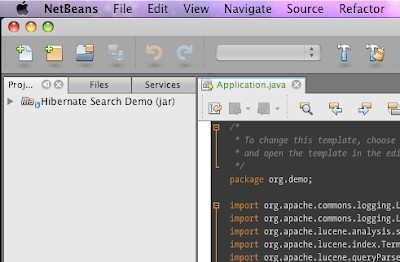
If you are a look and feel freak like me, you will notice that the toolbar is not just right under OS X 10.5, when running with default java 1.6, which is "1.6.0_13". The toolbar does not appear as "unified" and it will sooner or later turn out in to an eye-sore.
The way to work around this is to edit your netbeans.conf and tell netbeans to use JDK 1.5 instead of 1.6 for running. Put the following lines in to netbeans.conf (Probably at /Applications/NetBeans/NetBeans\ 6.7.app/Contents/Resources/NetBeans/etc/netbeans.conf)

netbeans_jdkhome="/System/Library/Frameworks/JavaVM.framework/Versions/1.5.0/Home/"

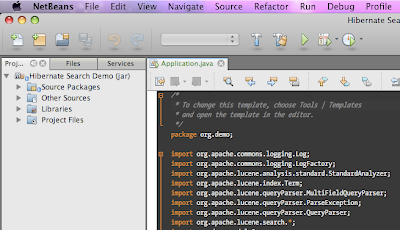
This will use your 1.5 version of Java, and it gives the right Unified toolbar look to netbeans. You can always set project specific JDK for each project in Netbeans.
So, here are couple of screen shots for comparisons.
1) Running with Jdk 1.6, non-unified
2) Running with Jdk 1.5, unified
If you don't want to edit the netbeans.conf file, just set your default java preference using "Java preferences" dialog in OS X. Select Java SE 5 as your default application Java, and you are all set.

Thursday, March 19, 2009

The new Netbeans look on OS X

I keep a tab on the IDE scene. So, I downloaded the latest development build of Netbeans and lo!
The UI look on OS X - is by far the best I have seen for Java IDEs
I have not used it enough so, I can not tell you about how it feels. Look-wise it rocks.
So, if you run OS X and you been complaining about the Netbeans look, it is the time to play with the development build. Go ahead

Friday, November 28, 2008

A tale of three IDEs

I think I should tell a little bit about the environment I am in. I am sure all Windows users can safely ignore everything below.
  • OS X 10.5.5
  • Default Java - java version "1.5.0_16"
  • Also have the latest (and buggy) apple Java 1.6.0_17
IDEVersionProblemFix
Netbeans6.5As soon as I launch, the netbeans icon jumps on the dock and then crashes. No error message on screen.This is due to some but in Apple's Java and updates. To address, you will have to edit file :
Applications/NetBeans/NetBeans 6.5.app/Contents/Resources/NetBeans/
platform9/lib/nbexec
and change
eval ${_NB_PROFILE_CMD} "\"${jdkhome}/bin/java\""
-Djdk.home="\"${jdkhome}\"" -classpath "\"$cp\"" \

$jargs org.netbeans.Main "$args" '&'
change it to:
ARCH_CMD="/usr/bin/arch -i386";
eval ${ARCH_CMD} ${_NB_PROFILE_CMD} "\"${jdkhome}/bin/java\""
-Djdk.home="\"${jdkhome}\"" -classpath "\"$cp\"" \
$jargs org.netbeans.Main "$a
rgs" '&'
Intellij IDEA8,7.xCompiler internal error. Process terminated with exit code 139 - This occurs whenever you try to build your projectNot sure how this gets fixed by my work-around, but all you have to do is : launch compiler properties- Intellij IDEA->Preferences..->Compiler->Java Compiler and put a valid option in "Additional command line parameters - for ex: -verbose
EclipseGanymedeNone so far

The fix for Netbeans issue is specified in netbeans issues
However, I had to figure out fix for issue with IDEA through trial and error(accidentally)
Screenshots for fixes mentioned above.
Netbeans :


IDEA


Monday, February 26, 2007

Pimpin' Netbeans UI in Linux (laptop)

This assumes you know how to do stuff around Netbeans and Linux.
I have the following in my Laptop.
Ubuntu Dapper Drake - Running GNOME 2.14 and Sun JDK 6.
Default X11 font rendering sucks a little. So, I applied sub-pixel smoothing patches.
I downloaded and started using Netbeans 5.5, which is pretty good. But by default it has the "Metal" look and feel, which is not very exciting. So, I decided to make Netbeans look "better".

I tried enabling the GTKLookAndFeel so that it looks native. But I must confess, the Java font rendering on GTKLookAndFeel is just plain horrible. My next choice for look and fee was JGoodies. JGoodies is a pretty neat and simple Look and feel library.

So, first you need JDK6 for better UI and Font rendering.
Download JGoodies look and feel and place the looks-2.1.3.jar in to your netbeans-5.5/core folder.

Now, edit your netbeans-5.5/etc/netbeans.conf file so that your netbeans_default_options value looks like :

netbeans_default_options="-J-Xms32m -J-Xmx384m -J-XX:PermSize=32m -J-XX:MaxPermSize=384m -J-Dswing.aatext=true -J-Xverify:none -J-DPlastic.defaultTheme=ExperienceBlue -J-DmarkContentBorders=true -laf com.jgoodies.looks.plastic.PlasticXPLookAndFeel -J-Dapple.laf.useScreenMenuBar=true"

Here, important lines are
  • J-DPlastic.defaultTheme=ExperienceBlue - this is a good theme on eyes
  • -laf com.jgoodies.looks.plastic.PlasticXPLookAndFeel - XP like look and feel.
  • -J-Dswing.aatext=true - Force font anti-aliasing options.

Start your netbeans with these options and it will look much better. But the tab headers are grayish and they look really horrible:

So, here is a fix for that. Download the tab header netbeans module from this site, and install it in your netbeans - by the following steps.

From Tools -> Module Manager, Click update button.
In Update center wizard, select Install manually selected downloads, and add and install the downloaded nbm module.


Restart your netbeans, and it should look pretty good. ( Here, I have included my Ubuntu Menu text to show how the font still sucks a bit)


Now, for editor font, get "Consolas" ( it is a Vista font so get it by hook or crook) and use it as your editor font. It looks nice - as nice as Apple's Monaco.