Showing posts with label ubuntu. Show all posts

Tuesday, January 3, 2012

New Kid in the block

I was getting a little frustrated with how Ubuntu was becoming bloated (with wrong choices of UI shell and basic stuff like media player ) and "un-userfriendly". My quest for a faster/better ubuntu alternative took me to Linux Mint. And what a pleasant surprise. Though based on ubuntu itself, this avatar impresses with performance - especially on a lower end hardware like the cr-48 or my co-worker's age old Dell latitude.

The first remarkable feature that you will note (of course after responsiveness) is the improved user interface. It is not only the theme, that makes the user comfortable but the improved menu. Ignore if there is some resemblance to windows 7, but the menu is far more organized and user friendly.
This is one of the best application menu I have seen in recent Linux systems. The feel is more windows like - something that I do not like personally. But if you are a recent switcher, you will feel at home and find that the UI work flows are simplified for good. For the usual Linux user, this distro is also as flexible as anything other. You can turn around things depending on your taste and usage. 

Plus, it takes care of installing all necessary basic applications and codecs that you need. It will not trouble you with a cryptic message box about codecs and copyrights when you try to play mp3 for the first time. The default music player seems to be banshee, personally I like rhythmbox.

Another is the software updates. It follows the tried and tested Ubuntu/Debian style of package management, which is pretty solid. The update management is very user-friendly.
You may even like the little "geeky Easter eggs" that shows up as you open terminal session - if you ever do it. 

And what more, the recent release supports "mate", the gnome2 fork for people who think gnome 3 is a bloat.
Go ahead try it as your next Linux installation.

Monday, October 17, 2011

Linux thoughts

I closely follow updates happening in Linux desktop software releases. Especially Ubuntu, which has reached 11.10. It is hard to believe that I had been using - or trying so to speak - Ubuntu since 5.10 - the breezy "badger".

Good stuff - things that improved along the way :
  • Font rendering (anti-aliasing) - Current on-screen font rendering beats Windows and OS x by miles.
  • Speed - yes most of the OS's had been focusing on this and Ubuntu also has improved it constantly. Currently 11.04 boots up in 20 seconds in my Intel Atom based Netbook.
  • Multimedia/flash - Nothing to credit Ubuntu, but these work better in Ubuntu than other (Fedora) notable distros. Also plenty of free tools to manipulate all kinds of media.
  • Updates - If you like living on the edge, Ubuntu can offer you about two OS releases every year.
  • Gnome2 - The Gnome user interface and applications were maturing in a nice way.

Now to the bad stuff.

Do you remember the days of Compiz vs Beryl days ? Gnome vs KDE arguments?
If not, don't worry, it is all stories from the past. Welcome to the Unity, Gnome Shell and Gnome2 melting pot. The confusion around next big user interface is definitely going to impact popularity of Linux as a desktop operating system. Most of the Linux fans dislikes   It is going to be more of an OS for "interest groups".
Big names like Linux Torvalds have already despised these.
Since this is my blog, I am going to air my opinion. Gnome Shell and Unity were a bad move. It not only discourage new users but slows things a bit too. All the applications (such as Nautilus, Ubuntu update managers etc) looks really armature and confusing. Compatibility is completely broken between Gnome2 and 3 themes. There are great theme engines and themes that were created since 2006 - all will go waste unless someone spends time porting those. Instead, more focus should have gone in to improving performance of Gnome2 and polishing already existing applications.
I just hope that Ubuntu spends more time in fixing quirks of Unity and making all over user experience better in the platform. As long as Gnome Shell is concerned, I have serious doubts about its future unless it undergoes some radical changes.

Saturday, August 13, 2011

Goodbye Chrome OS - Wiping CR-48 off and installing Ubuntu

After 7 months of trying out Chrome OS on google's generously distributed CR-48, I am totally disappointed in the software. It is probably because I am not the casual internet user that google expected. After latest software updates, the touchpad became so 'non-usable'. The user experience was beyond annoying.
Considering that I had uploaded at least twenty bug/usage reports, I guess my part in evaluating Chrome OS was done. So the decision was to wipe chrome OS completely off and install Ubuntu.
First, let me warn you that if you do not like to crack open stuff, do not attempt this. First step is to flash CR-48 with a custom BIOS(InSyde H2O). For this follow steps here. Note that it involves opening up the back casing of CR-48. So make sure you have philips screwdriver set handy before you start.
Once the custom BIOS (InSyde H2O) is installed, you are basically ready to install any operating system. For optimal performance, consider Ubuntu desktop, netbook editions or Jolicloud (ChromeOS's better cousin)
I chose to go with Ubuntu Desktop edition.
Things you need :
A USB Stick with at least 2GB storage
Internet access on a Windows/Mac/Linux System

Step1: prepare USB Ubuntu bootable/install disk
Download Ubuntu. Now keep in mind that InSyde H2O some how fails to load newer Ubuntu OSs(Meerkat and Narwhal). That means you need to download Lucid Lynx(10.04) and follow steps here

Step2: Plug in the USB stick to your CR-48 and power on
With custom BIOS on, CR-48 will boot from the newly prepared Ubuntu USB drive

Step3: Once ubuntu started, click on the desktop icon to Install the software
During the install, you will be presented options to retain existing OS's. But I chose to completely erase my SSD. That means if you change your mind and wanted to go back to ChromeOS, you need to restore BIOS and have ChromeOS restore disk handy.
Step 4: Installation completes, as system reboots remove the USB drive and the system boots in Ubuntu Lucid Lynx. At this point connect to Internet (wireless or otherwise - everything works out of the box) and update your system.

Step 5: Fixing the "touchpad" - Touchpad acts crappy under Lucid Lynx. So upgrade Lucid Lynx to "Maverick Meerkat" by enabling release upgrades on your Synaptic Upgrade manager as described here.
This will not only upgrade your CR-48 to Maverick Meerkat but will install necessary software for configuring the touch pad. The touch pad can be configured by "Touch Pad" tab on System->Preferences->Mouse. This lets you enable double finger scroll, disabling tap click etc. ( very important for usability)
I am totally enjoying my CR-48 now, with great free software, iPod integration and about 10G free SSD space to store things locally.
I stopped my upgrad e at Meerkat and did not go to Narwhal as it might be a bit slower on CR-48

End result (with awn dock, global menu and Fusion Blue theme) :


Update : Updated to Natty using package manager by turning on release updates, no issues everything working smooth including the synaptic touch pad.

Tuesday, June 8, 2010

Windows 7 vs Ubuntu Lucid Lynx

Let's kill the suspense. Ubuntu is the winner, hands down or is at least on a virtual machine.
I installed Ubuntu and Windows 7 on oracle virtual box, on Windows XP.
Windows 7 (in its vanilla form, extreme edition) has a wait icon on mouse pointer on everything I do, and visible lag on opening anything.
Ubuntu, with all bells and whistles turned on (compiz/etc) works extremely fast and feels snappy.
I wish if some company properly designed and marketed laptops with Ubuntu for end-users and provided appropriate support!
Microsoft and Apple would have to run for their money on OS market.

Monday, July 13, 2009

Ubuntu 9.04 on OS X via virtual box

Virtualization and virtual machines are a great concept and it is here to stay. I tried installing virtual box (from Sun) on my OS X 10.5, and the experience had been smooth, smoother and the smoothest. I am running Ubuntu on top of my Mac OS, with full screen enabled. For tips to enable fullscreen, visit this link. Though it was written for vista, applies to other OSs as well.
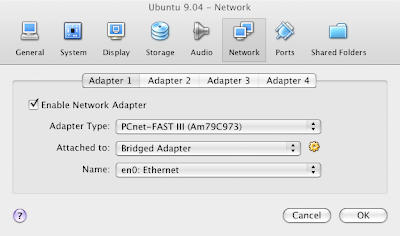
The next step was to bridge the network adapter to use the wired connection en0 on mac.
For this,
  • Shut down your guest OS (ubuntu)
  • Click Network option in the details tab of Sun Virtualbox
  • It will show a small dialog with Adapter1 as selected tab as below
Change the settings to look like what I have in the above picture.

Also, after installing - "Vbox additions" I have noticed the automatic mouse capture and release whenever you move your mouse in and out of the Virtual guest OS window - too cool.
Oh yes, sound works right off the box.

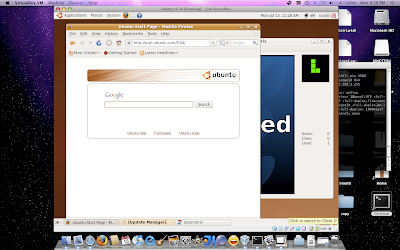
Here is a screen capture of Ubuntu running on OS X

Monday, February 26, 2007

Pimpin' Netbeans UI in Linux (laptop)

This assumes you know how to do stuff around Netbeans and Linux.
I have the following in my Laptop.
Ubuntu Dapper Drake - Running GNOME 2.14 and Sun JDK 6.
Default X11 font rendering sucks a little. So, I applied sub-pixel smoothing patches.
I downloaded and started using Netbeans 5.5, which is pretty good. But by default it has the "Metal" look and feel, which is not very exciting. So, I decided to make Netbeans look "better".

I tried enabling the GTKLookAndFeel so that it looks native. But I must confess, the Java font rendering on GTKLookAndFeel is just plain horrible. My next choice for look and fee was JGoodies. JGoodies is a pretty neat and simple Look and feel library.

So, first you need JDK6 for better UI and Font rendering.
Download JGoodies look and feel and place the looks-2.1.3.jar in to your netbeans-5.5/core folder.

Now, edit your netbeans-5.5/etc/netbeans.conf file so that your netbeans_default_options value looks like :

netbeans_default_options="-J-Xms32m -J-Xmx384m -J-XX:PermSize=32m -J-XX:MaxPermSize=384m -J-Dswing.aatext=true -J-Xverify:none -J-DPlastic.defaultTheme=ExperienceBlue -J-DmarkContentBorders=true -laf com.jgoodies.looks.plastic.PlasticXPLookAndFeel -J-Dapple.laf.useScreenMenuBar=true"

Here, important lines are
  • J-DPlastic.defaultTheme=ExperienceBlue - this is a good theme on eyes
  • -laf com.jgoodies.looks.plastic.PlasticXPLookAndFeel - XP like look and feel.
  • -J-Dswing.aatext=true - Force font anti-aliasing options.

Start your netbeans with these options and it will look much better. But the tab headers are grayish and they look really horrible:

So, here is a fix for that. Download the tab header netbeans module from this site, and install it in your netbeans - by the following steps.

From Tools -> Module Manager, Click update button.
In Update center wizard, select Install manually selected downloads, and add and install the downloaded nbm module.


Restart your netbeans, and it should look pretty good. ( Here, I have included my Ubuntu Menu text to show how the font still sucks a bit)


Now, for editor font, get "Consolas" ( it is a Vista font so get it by hook or crook) and use it as your editor font. It looks nice - as nice as Apple's Monaco.