Sunday, September 14, 2008

Leopard-like toolbar buttons in Java Swing - part 2

I had been trying to create "leopard-like" toolbar buttons. This required a lot of Swing coding and a bit of imagination. Apple, with its Apple JDK 1.6 features, has introduced ways to create many different kinds of Apple buttons. Namely : square, gradient, bevel, textured, roundrect, recessed and help.
 This greatly reduces the work that you need to do. However, the look will not carry forward to other platforms. For that, you need to paint your own buttons as I mentioned in my earlier blog.
The technique for rendering leopard like toolbar button is :
  • Create a transparent PNG icon for the button - for example, a plus sign
  • Create a JButton and set button.putClientProperty("JButton.buttonType", "segmentedTextured") and various other options in apple's technical note website.


Monday, September 8, 2008

State of clientProperty in OS X Java 1.6

Started looking at my pet Java Swing application - jSpent. This time the attempt was to create a leopard-like unified toolbar. I was so excited to see that there is a clientProperty "apple.awt.brushMetalLook" - By setting this as : 
myFrame.getRootPane().putClientProperty("apple.awt.brushMetalLook", Boolean.TRUE);
This will cause OS X to render the title bar in the unified style. But unfortunately, there is no good clientProperty setting for the toolbar itself. So we end up with a light gray window title bar. The toolbar appears like a gray box, painted in different color. Not sure if this is a bug in Apples Java. However, I had to again resort to pick and choose and paint my own gradient just below the window title bar to make it look "Unified". So, here is the output. 


But oh well, I need to repaint the toolbar in ligher gradient when the window goes out of focus.. hm.. that's too much to do!

Thursday, August 14, 2008

Why OS X is sweet..

Since I am a guy who moved from MS Windows/GNOME world to OS X, I used to miss the "start menu". But soon I discovered how handy the spotlight search is.
I started discovering interesting features and applications as I continued to use mac. For example, for ripping a DVD, we have Handbreak. For video format conversion there is iSquint. But how on earth would you remember these names when you need it. I installed iSquint and one day I was racking my brain to find what was the name of that application that would convert one video format to another in Mac. At last, I had to google it though I had the software on my desktop. Then I thought hey! the spotlight must have a feature to tag an application with whatever keywords you want. And yes! there is.
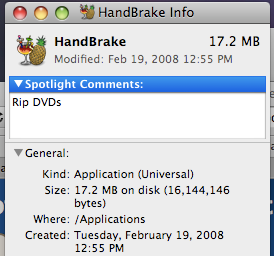
Select the application from Application folder, right click and goto info dialog. There is a top text area called "Spotlight comments" enter your keywords. Now, if you type just the key words in plain English on spotlight, it lists the application that will match your keywords..awesome!!

So here are the screenshots with what I did for Handbreak. Right click and invoke the info dialog. Enter the key word:


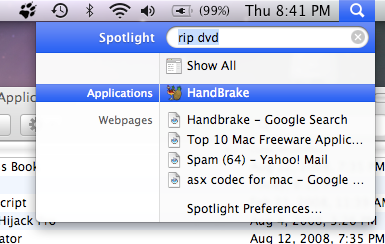
Now when you want to rip a DVD ( hey its illegal!), type rip DVD on your spotlight search textbox and here is what happens


This is far far better from searching through your program in a startmenu with 100 different shortcuts. And may be its just me, I like keyboard short cuts ( apple + space bar for spotlight search) and a little typing.